
Admission season is the busiest time of the year for a preschool. Parents fill paper forms, the office types them into a register, someone photocopies the birth certificate, and by June nobody is sure which form is the latest. A single wrong digit in a father’s phone number can mean a missed call on the day a child falls ill.
A good student enrollment system turns all of this into one clean digital record per child. Here is how enrollment and student records work in SchoolBee.
In this guide
Enrolling a child in six guided steps
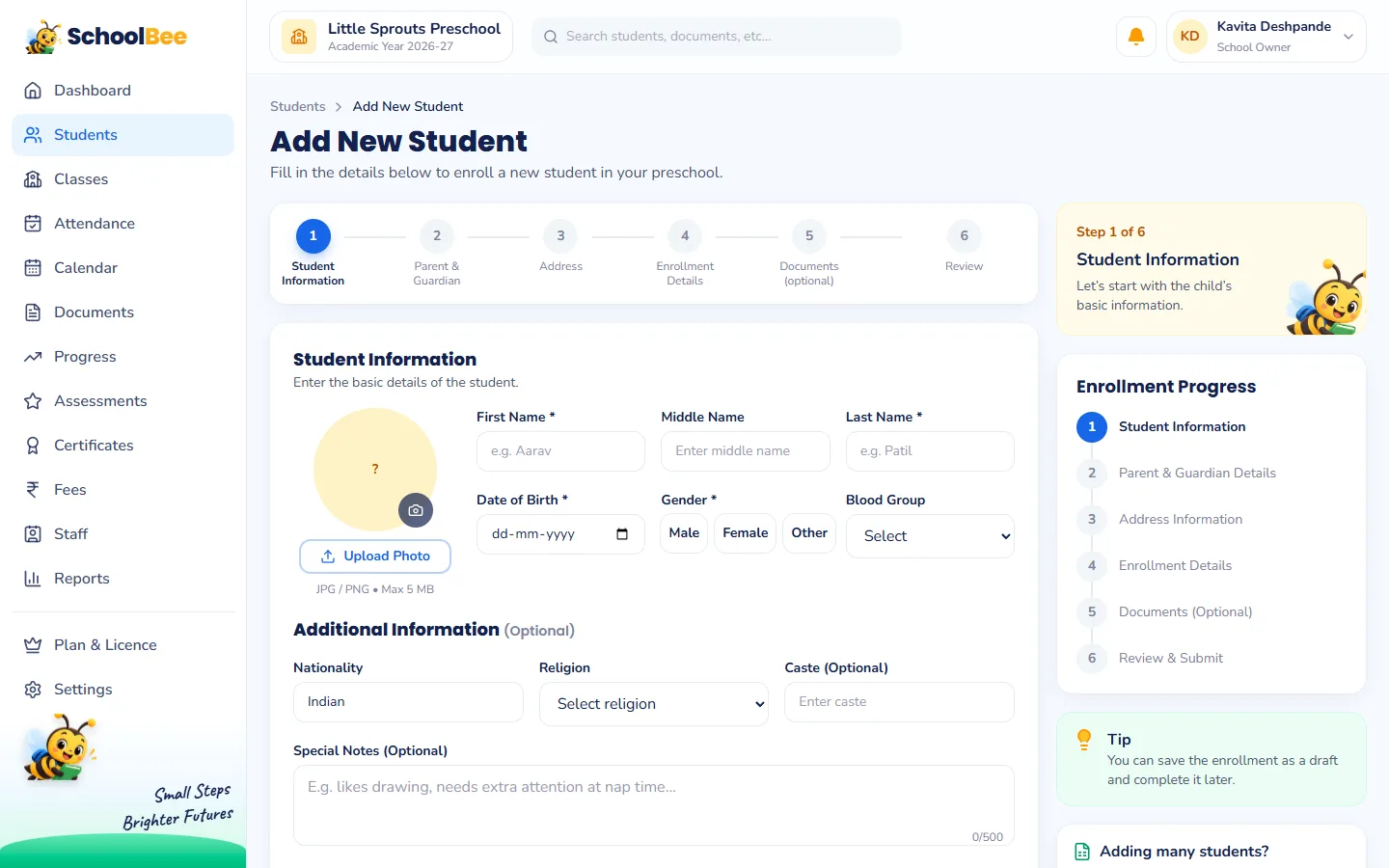
The Add New Student form is split into short steps so nothing important is missed and nobody faces a giant form:
- Student Information: name, date of birth, gender, blood group and photo, plus optional nationality, religion and special notes (for example "likes drawing, needs extra attention at nap time").
- Parent & Guardian: father, mother and guardian names, phone numbers and email addresses.
- Address: home address for records and certificates.
- Enrollment Details: academic year, class and section.
- Documents (optional): birth certificate, Aadhaar, photos and medical records, now or later.
- Review & Submit: check everything on one screen before enrolling.
Moving from Excel? Import the whole school at once
If you already keep students in a spreadsheet, you do not have to retype them. Download the student import template from the Students page. It already lists your classes and sections. Fill it in (or paste from your old sheet) and upload it. SchoolBee checks every row and tells you exactly which rows need fixing before anything is saved.
You can also export the student list to Excel or CSV at any time, for example for a government survey or an insurance form. Your data always stays yours.
A student list you can actually search
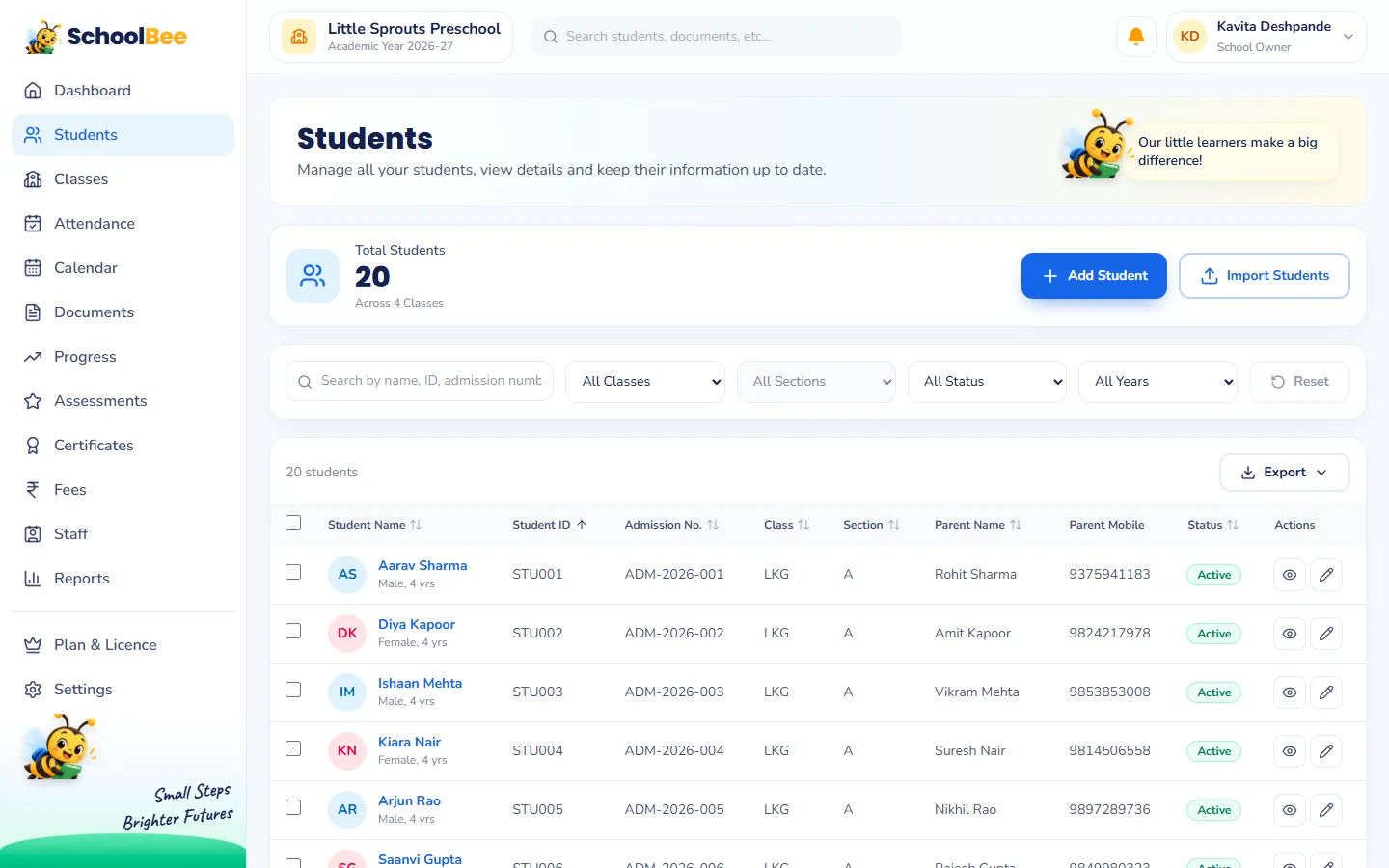
The Students page shows every child with class, section, student ID, parents and phone numbers. Search by name, ID or admission number; filter by class, section or status; and sort the list however you like. Mark students inactive in bulk when they leave, without deleting their history.
One profile with everything about a child
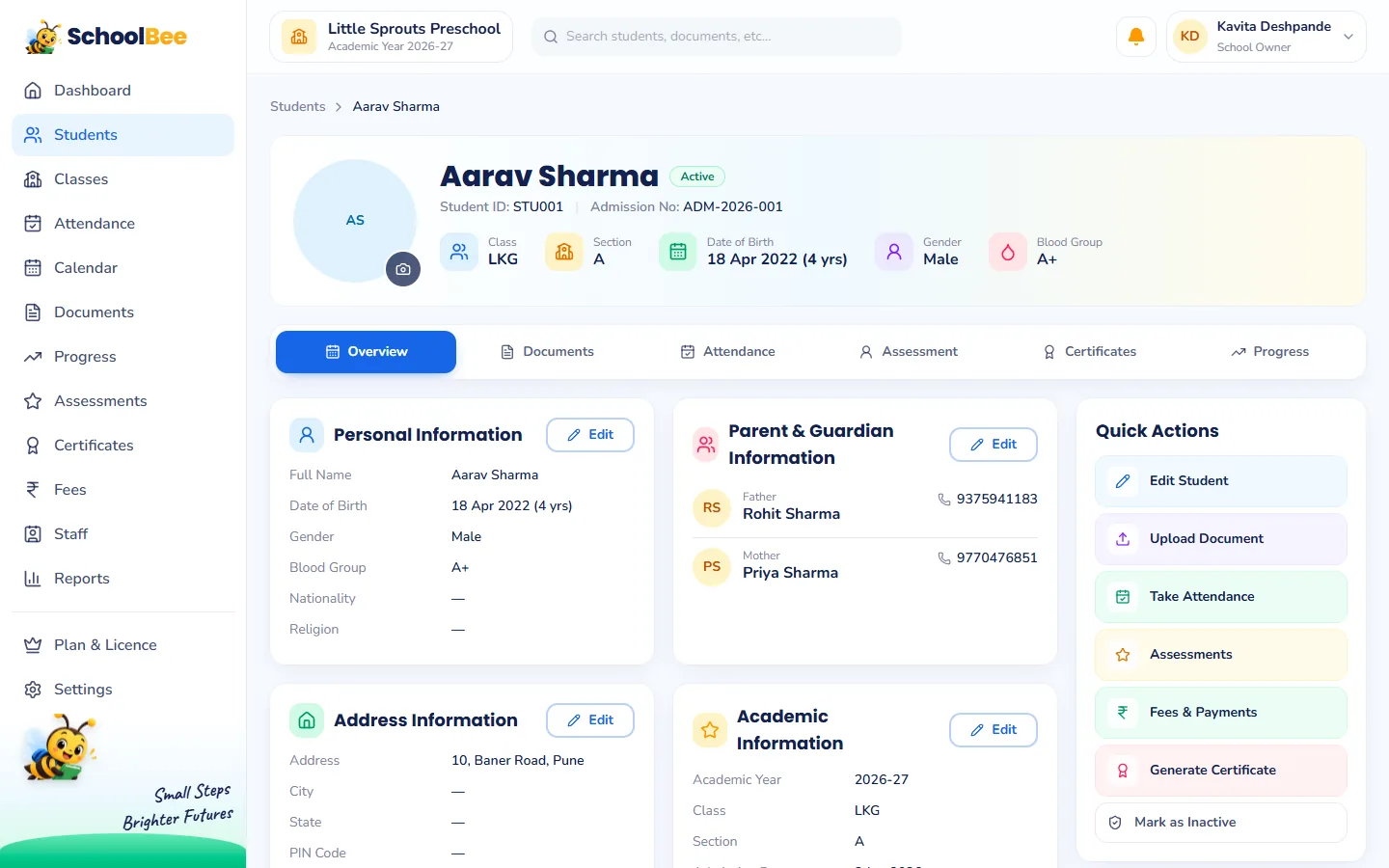
Open any student to see their complete profile. The tabs bring together information that is usually spread across files and registers:
- Overview: personal details, parents and guardians, address and academic information.
- Documents: which required documents are submitted, verified or missing. See digital student documents.
- Attendance: the child’s month-by-month attendance.
- Assessment: results from term assessments. See preschool assessments and report cards.
- Certificates: every certificate issued to the child.
- Progress: star ratings, teacher notes and activities over time.
Classes and sections that match how preschools work
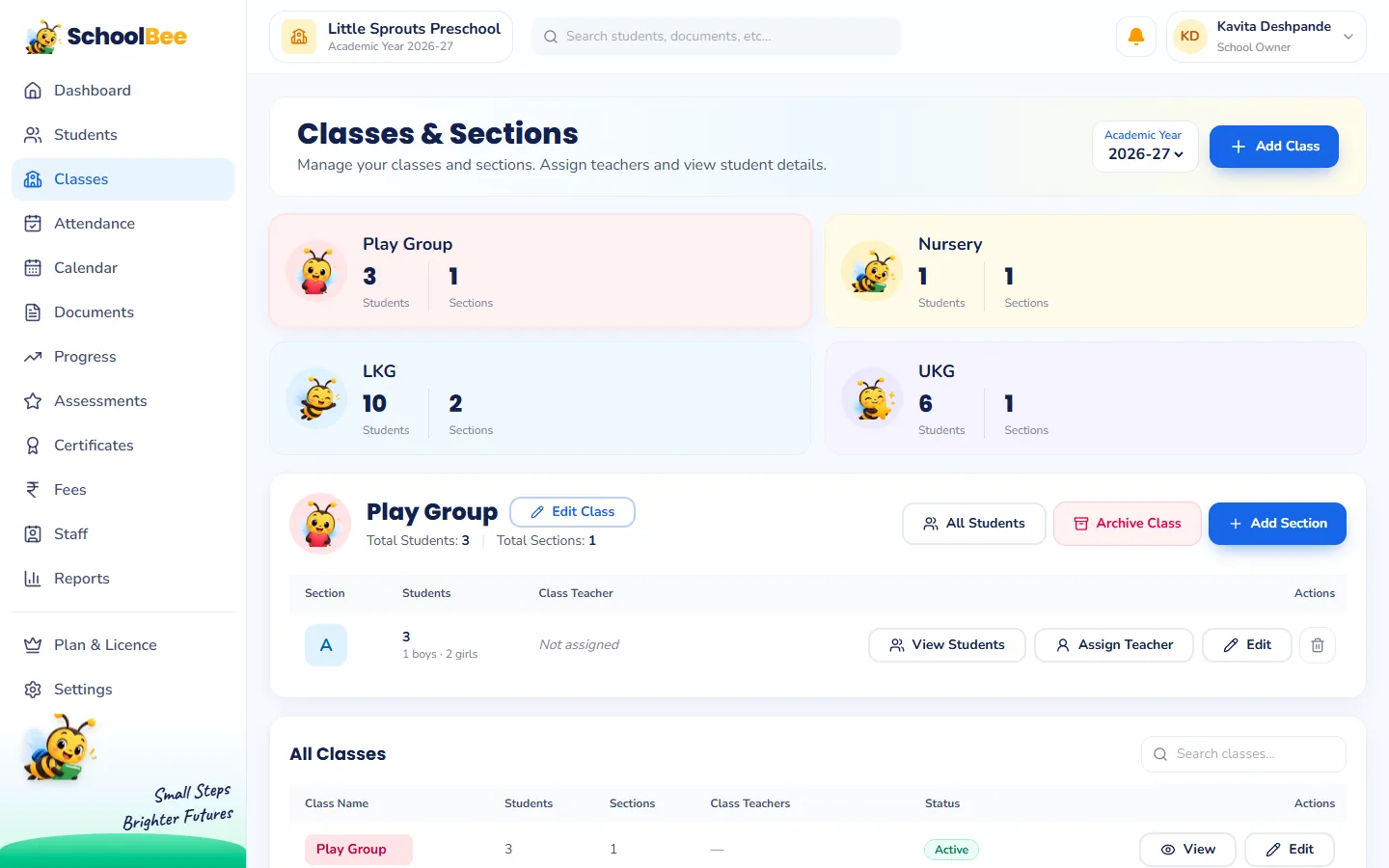
Create classes the way you name them, such as Play Group, Nursery, LKG and UKG, and split them into sections like LKG A and LKG B. The Classes page shows how many children are in each section and who the class teacher is. Student counts follow the academic year you pick, so last year’s numbers never mix with this year’s.
Why digital student records matter
- Accurate parent contacts. Phone numbers and emails are typed once and used everywhere, including the parent portal login.
- Faster certificates. Bonafide and leaving certificates pull the child’s details automatically. See the certificate generator.
- Correct fees. A child’s class decides their fee structure, so fees are right from day one. Read about fee management.
- Useful reports. Class strength, new admissions, birthdays and incomplete profiles are ready-made reports.
Frequently asked questions
Can I import students from Excel?
Yes. Download the import template from the Students page, fill in your students and upload it. SchoolBee shows any rows that need fixing before saving.
Can I save an incomplete admission?
Yes. Save the enrollment as a draft and complete it later, for example when the parents bring the remaining documents.
What happens when a child leaves the school?
Mark the student inactive. Their attendance, fees, certificates and progress history stay available for your records.
Can teachers see all students?
You decide. A class teacher can be limited to their own classes, or be allowed to see all students, through staff permissions.
Is there a limit on the number of students?
It depends on your plan. You can check plan limits and upgrade any time from Plan & Licence. Start with a free trial.