
Fees keep a preschool running, yet in most small schools they are tracked in a diary, a receipt book and an Excel sheet that only one person understands. Every month someone has to work out who still owes Term 2, who got a sibling discount and whether the cash entry from last Tuesday was ever written down.
SchoolBee replaces that with fee management software built around how preschools actually charge: a yearly fee per class, paid in instalments, with concessions and the occasional one-off charge.
In this guide
Step 1: Set a fee structure for each class
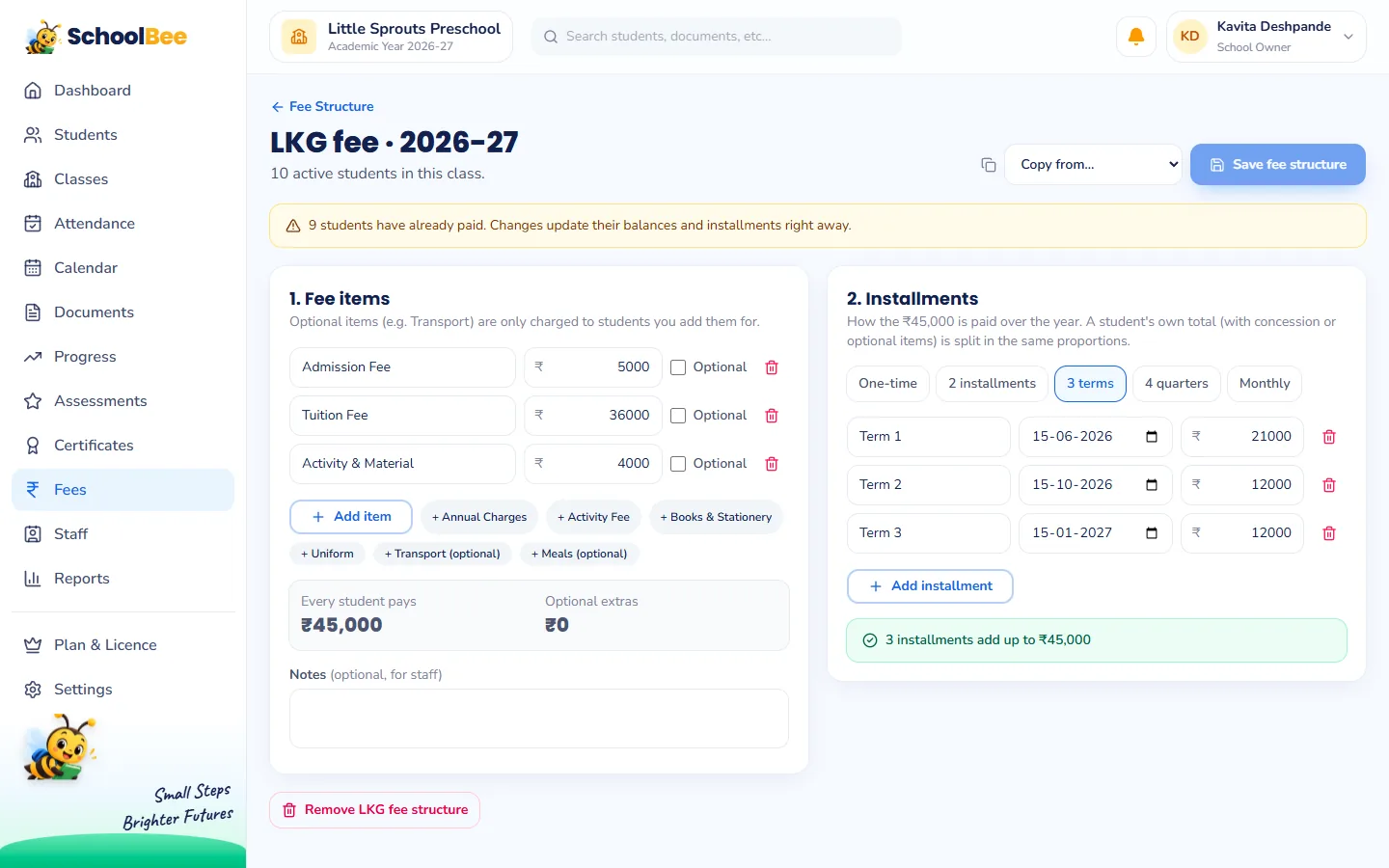
Start in Fees → Fee Structure. For each class, list the fee items, for example Admission Fee, Tuition Fee and Activity & Material, with the yearly amount for each. Items can be marked optional (like transport) so they apply only to the children who choose them.
Then split the yearly total into instalments with due dates: Term 1 due 15 June, Term 2 due 15 October and Term 3 due 15 January, or monthly if you prefer. SchoolBee shows the total so the instalments always add up. Already set up one class? Copy its structure to another and just change the amounts.
Step 2: See every student’s fee status at a glance
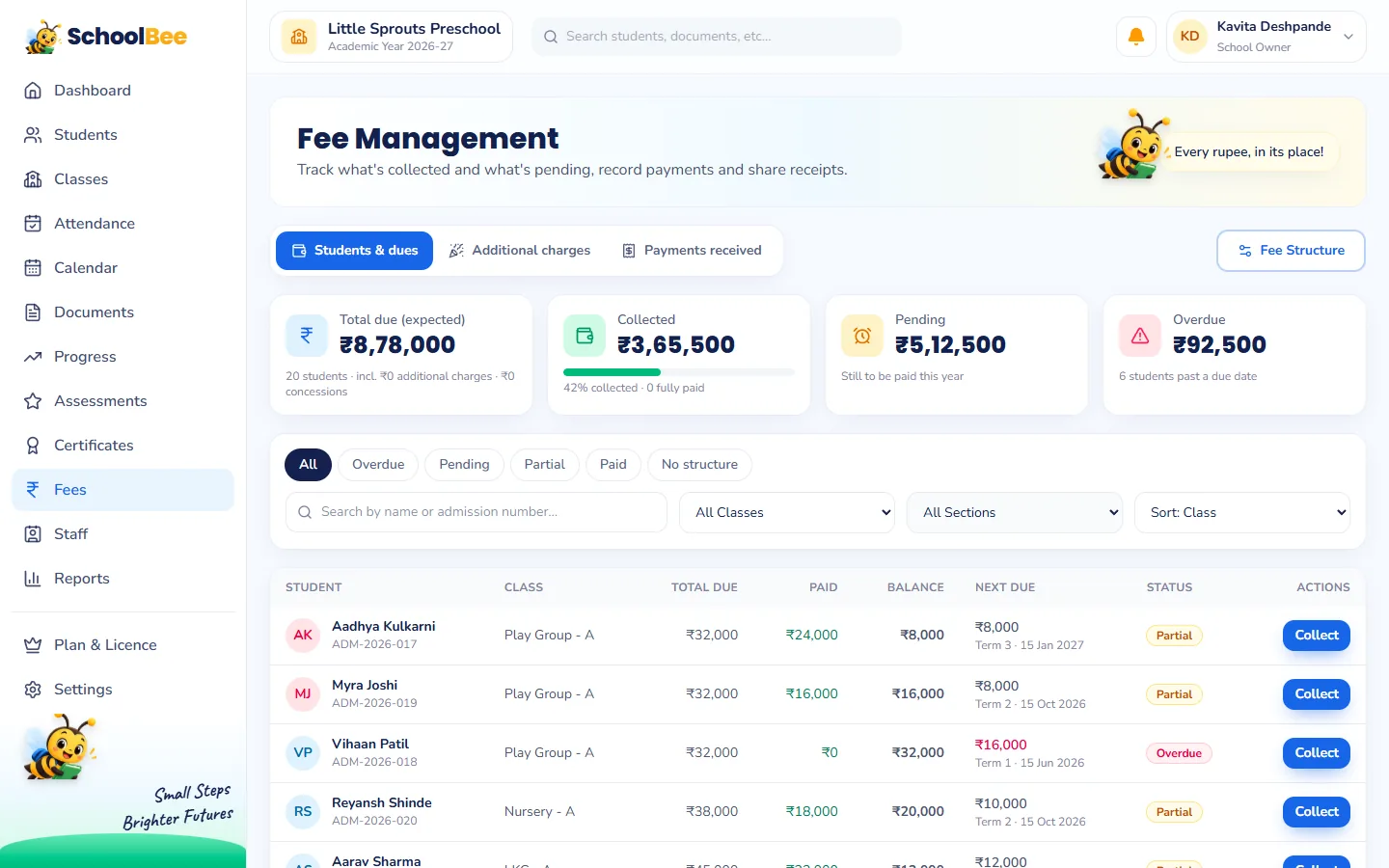
The Fee Management page shows four numbers that answer the owner’s real questions: total due for the year, collected so far, pending and overdue. Below them, every student is listed with total due, paid, balance, next instalment and a clear status: Paid, Partial, Pending or Overdue.
Filter by class, section or status, search by name or admission number and sort by balance or due date. Need to call parents with overdue fees? Click Overdue and the list is ready.
Step 3: Record payments and share receipts
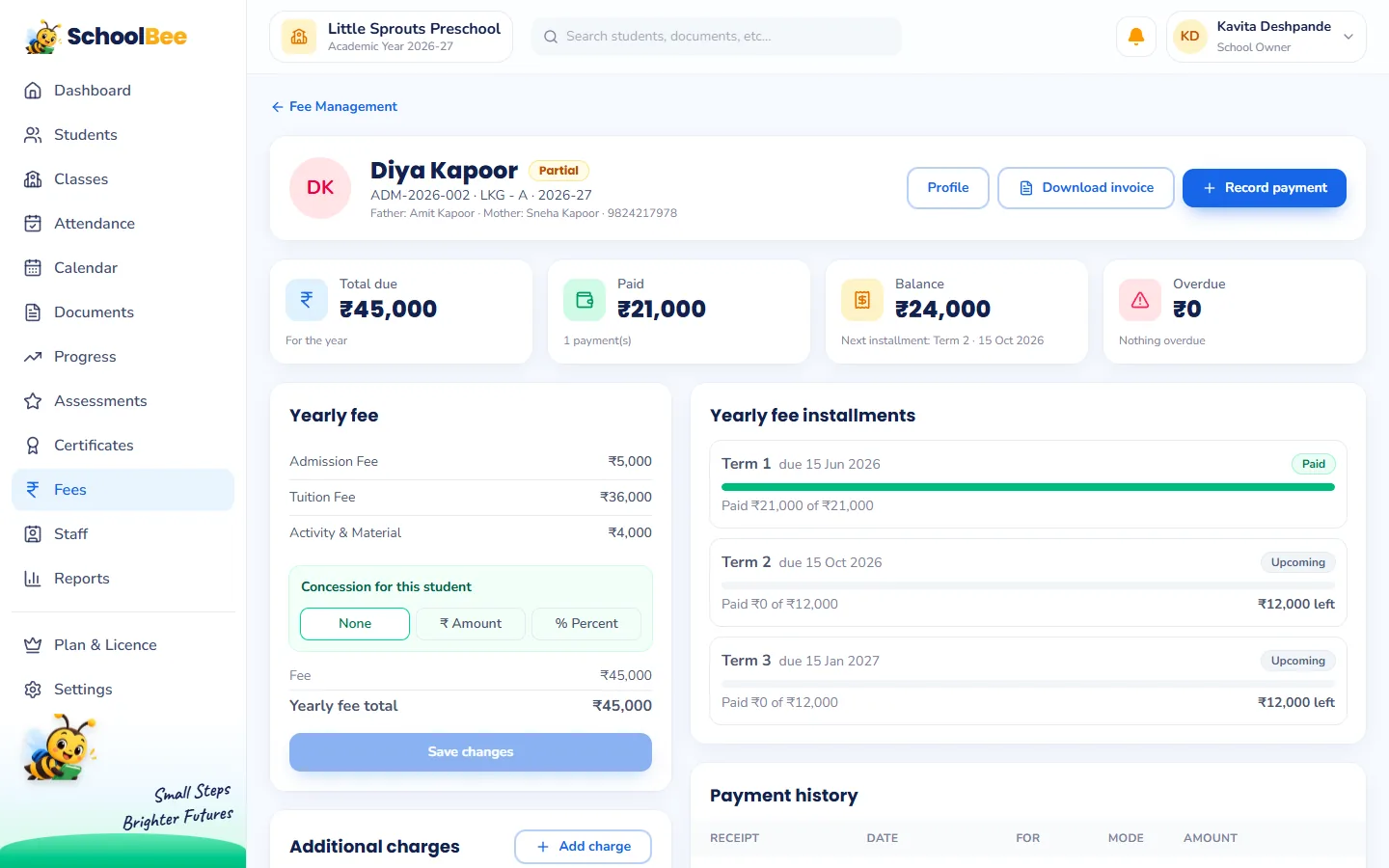
When a parent pays, click Collect (or Record payment on the student’s fee page), enter the amount and date, and choose the mode: Cash, UPI, Card, Bank Transfer or Cheque. Add the UPI or cheque reference if you like. The payment is applied to the oldest unpaid instalment automatically.
Every payment gets a receipt you can download as a PDF and share, and you can download a full invoice for the year. Made a mistake? Void the payment with a reason. It stays visible in the history, so nothing silently disappears.
Concessions, optional items and one-off charges
- Concessions: give a sibling or staff-child discount as a fixed amount or a percentage, per student. The instalments adjust automatically.
- Optional items: switch an optional item like transport on or off for a student.
- Additional charges: Annual Day costumes, a field trip, exam material or a late fee. Raise a charge for whole classes or sections, or for picked students; each child gets their own line, which you can change or waive with a reason.
Additional charges count in each student’s status and in the school totals, so the overdue list is always complete.
Fee reports for the owner and the accountant
The Reports section includes ready fee reports with charts and Excel or PDF export:
| Report | What it answers |
|---|---|
| Fee collection (day book) | Every payment received in a period, by mode and class |
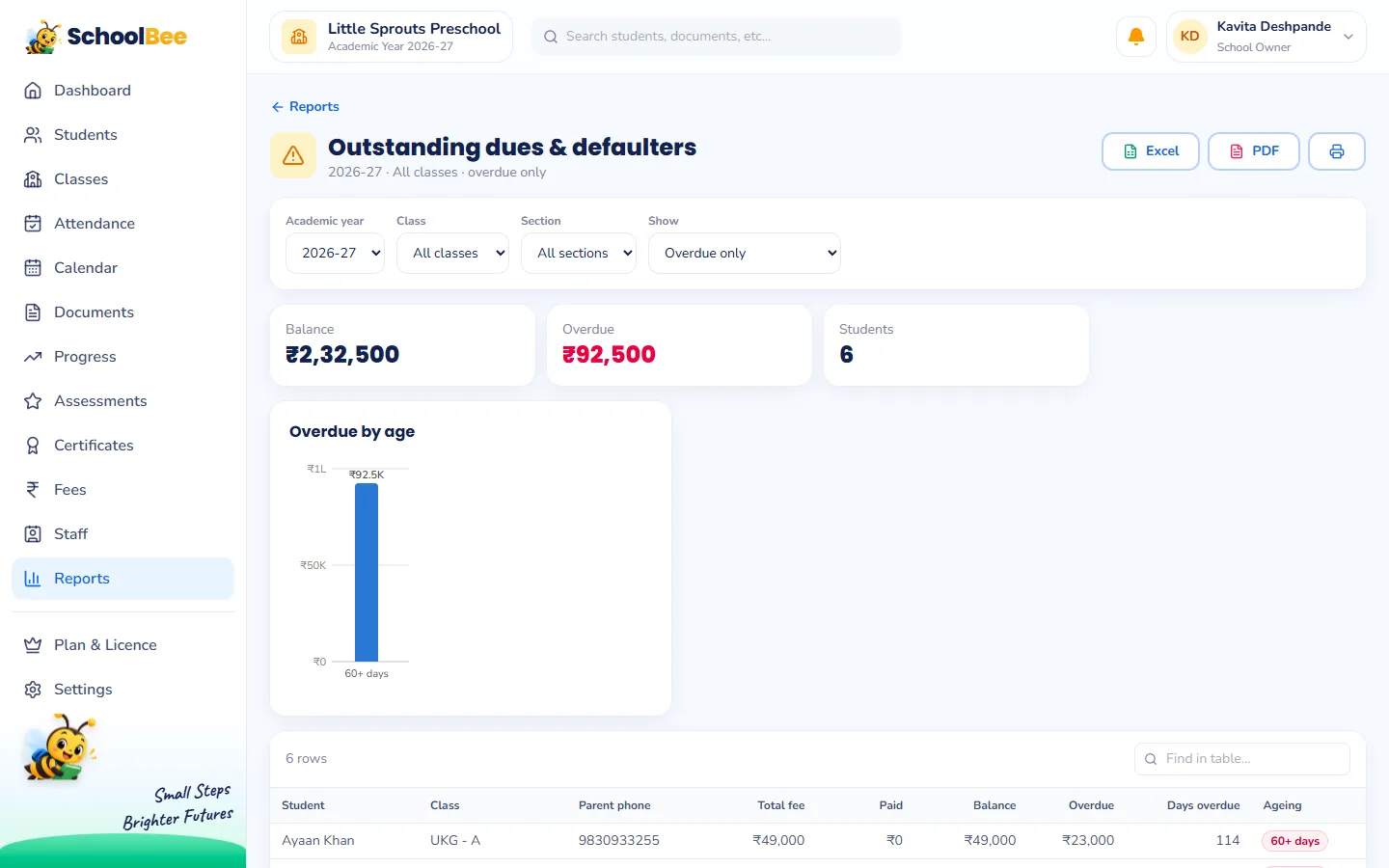
| Outstanding dues & defaulters | Who owes what, and how long it has been overdue |
| Fee summary by class | Expected, concessions, collected and balance per class |
| Concessions given | Every concession with amount and reason |
| Additional charges | Each event or trip charge: billed, waived, collected, balance |
Who can see fees?
Fees are sensitive. By default only the owner and admins see them. You can let an accountant view fees or collect payments, and keep fee structures and concessions for yourself, using simple staff permissions. Class teachers never see fees unless you allow it.
Frequently asked questions
Can I collect fees in instalments?
Yes. Split each class’s yearly fee into as many instalments as you need, each with its own due date and amount.
Which payment modes can I record?
Cash, UPI, card, bank transfer and cheque, with an optional reference number for each payment.
Can I give a discount to one student?
Yes. Add a concession as a fixed amount or a percentage on the student’s fee page. Their instalments update automatically.
Can parents pay fees online through SchoolBee?
Not yet. SchoolBee records the payments your school receives by any mode and generates receipts and invoices.
Can I see a list of parents with overdue fees?
Yes. Filter the fee list by Overdue, or open the Outstanding dues & defaulters report and export it to Excel. Try it free.