Preschool assessment is different from school exams. A two-year-old in Play Group should not get marks out of 100, while UKG children preparing for Class 1 may well be assessed on reading and writing. Most report card templates force one format on everyone.
Assessments in SchoolBee let each class be assessed in a way that suits its age, then turn the results into report cards with one click.
In this guide
Four ways to record a result
| Type | Example | Best for |
|---|---|---|
| Marks | 18 / 20 (half marks allowed) | UKG English, Mathematics |
| Grade | A+ Excellent, A Very Good … D Needs Improvement | Subjects where a grade reads better than marks |
| Rating | 1 Beginning, 2 Developing, 3 Good, 4 Excellent (shown as stars) | Development areas in Play Group and Nursery |
| Observation | "Participates eagerly in group songs" | Teacher’s comments |
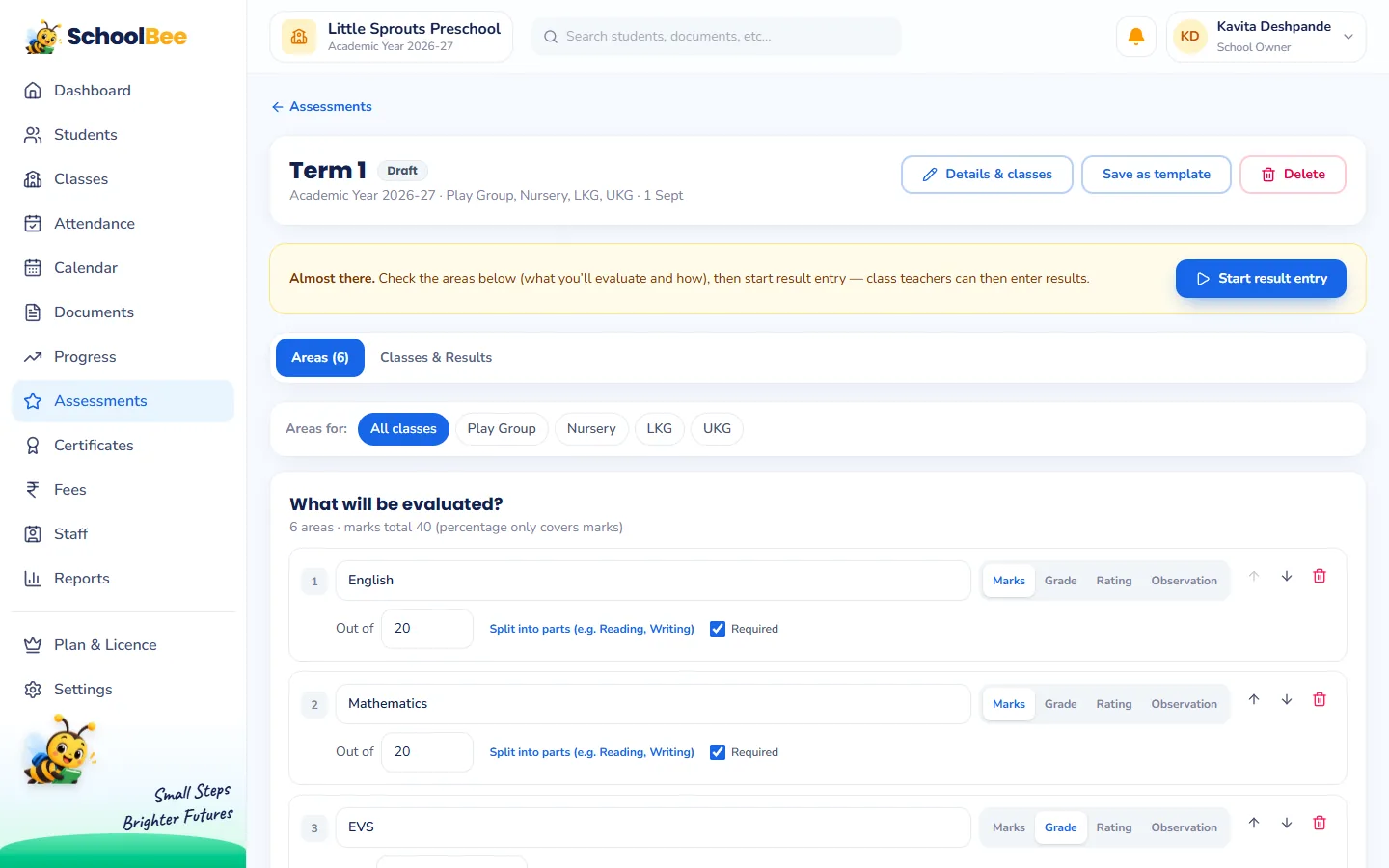
Areas can be split into parts, for example English into Reading and Writing, each with its own maximum. Percentages and totals only ever use marks areas, so grades and ratings are never forced into numbers.
Creating an assessment from a template
Click New Assessment, give it a name like Term 1 and pick the classes. Start from a ready template (Preschool Development, LKG Basic or UKG Basic) or from a blank one. The template fills in sensible areas, which you can rename, add to or remove.
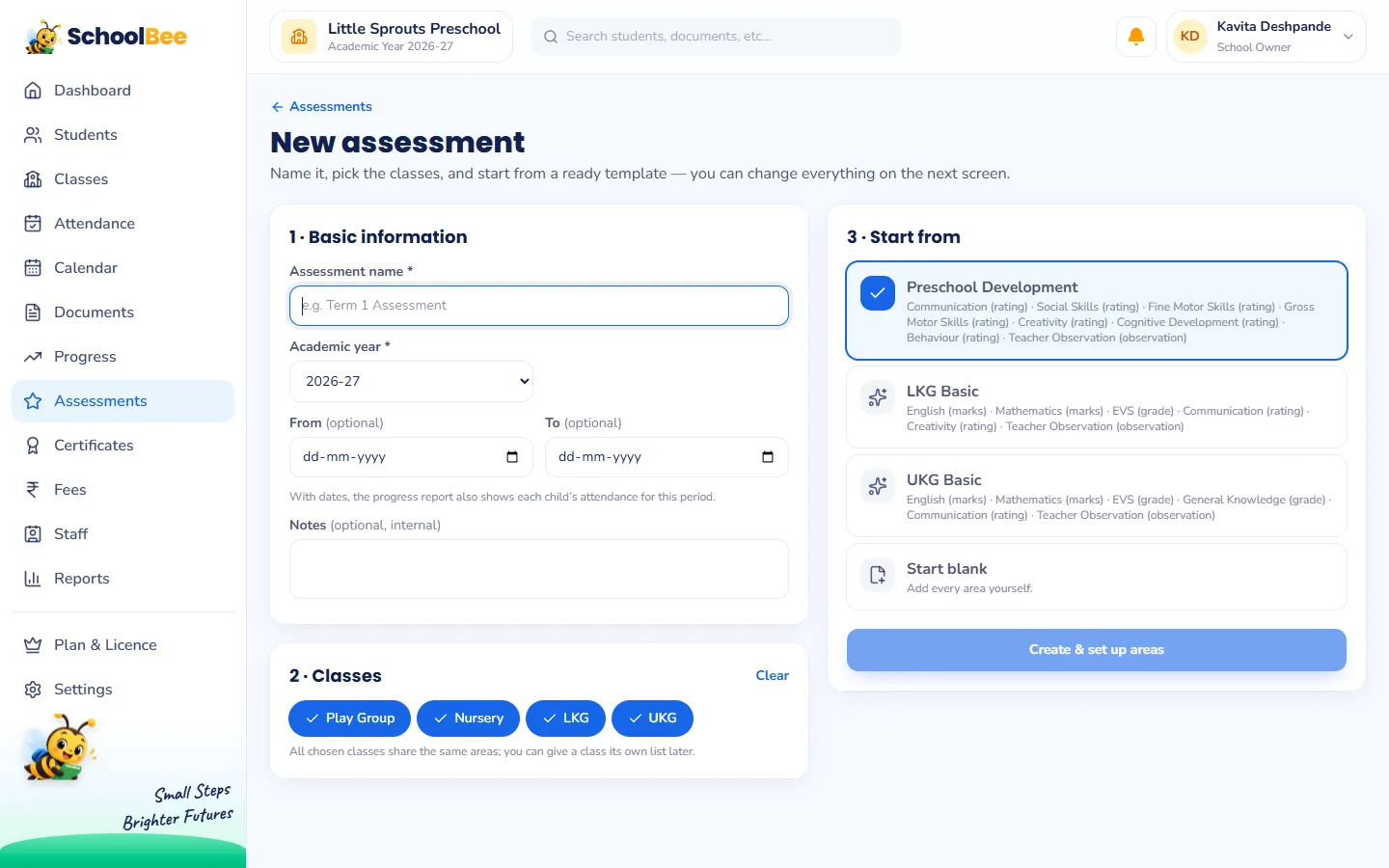
Areas are shared by all the assessment’s classes, but any class can get its own list. For example, Play Group might use only development ratings while LKG also has English and Mathematics marks.
Result entry by class teachers
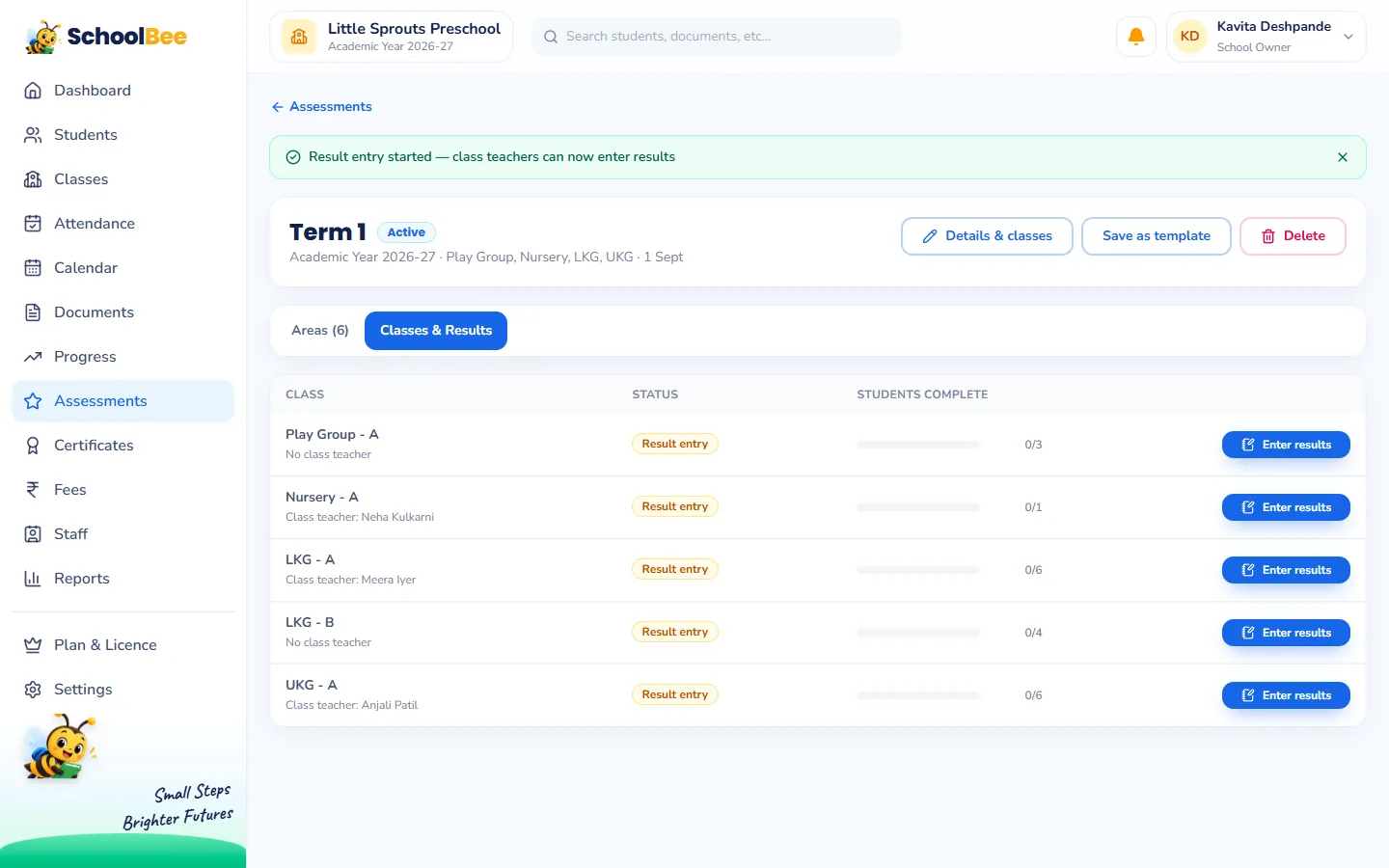
When the set-up is ready, click Start result entry. SchoolBee opens a row for every class and section, which moves from Open to Completed to Published.
- Class teachers enter results only for their own sections and mark them complete.
- The owner (or anyone with permission to manage assessments) can enter results for any section and publishes them.
- Published results are read-only. Only the owner can unlock a section if a correction is needed.
Report cards in one click
Once a section is published, generate report cards for one child or the whole section. Section report cards are created in the background and collected into one download. Results also appear on each child’s student profile under Assessment.
Two reports help the owner keep an eye on things: Class result summary (averages per area and the spread of grades or ratings) and Result entry status (which classes are still entering, ready or published).
Good practice for assessing young children
- Observe over time. Base results on several observations, not a single test day.
- Use ratings and words for the youngest. Stars and observations suit Play Group and Nursery better than marks.
- Describe, do not label. "Is learning to hold a pencil" helps parents more than "Poor fine motor skills".
- Share next steps. End each report card with one or two things parents can do at home.
Frequently asked questions
Can different classes be assessed differently?
Yes. Areas are shared by default, but any class can have its own list, for example only development ratings for Play Group.
Can I use grades instead of marks?
Yes. Each area can use marks, a grade scale, a rating scale or free-text observations.
Who can enter results?
Class teachers enter results for their own sections. The owner and staff with permission to manage assessments can enter any section and publish.
Can a published result be changed?
Published results are read-only. The owner can unlock a section to correct it and publish again.
Can I print report cards for a whole class?
Yes. Generate report cards for an entire published section in one go.