
Every admission comes with a small pile of paper: a birth certificate, an Aadhaar copy, a medical certificate, passport photos, maybe a transfer certificate from a previous school. Most preschools keep them in files on a shelf. It works until an inspection, an insurance claim or a parent asking for a copy, and then someone spends an afternoon searching.
The Documents module in SchoolBee keeps each child’s papers in a digital checklist so you always know what you have, what is missing and what still needs checking.
In this guide
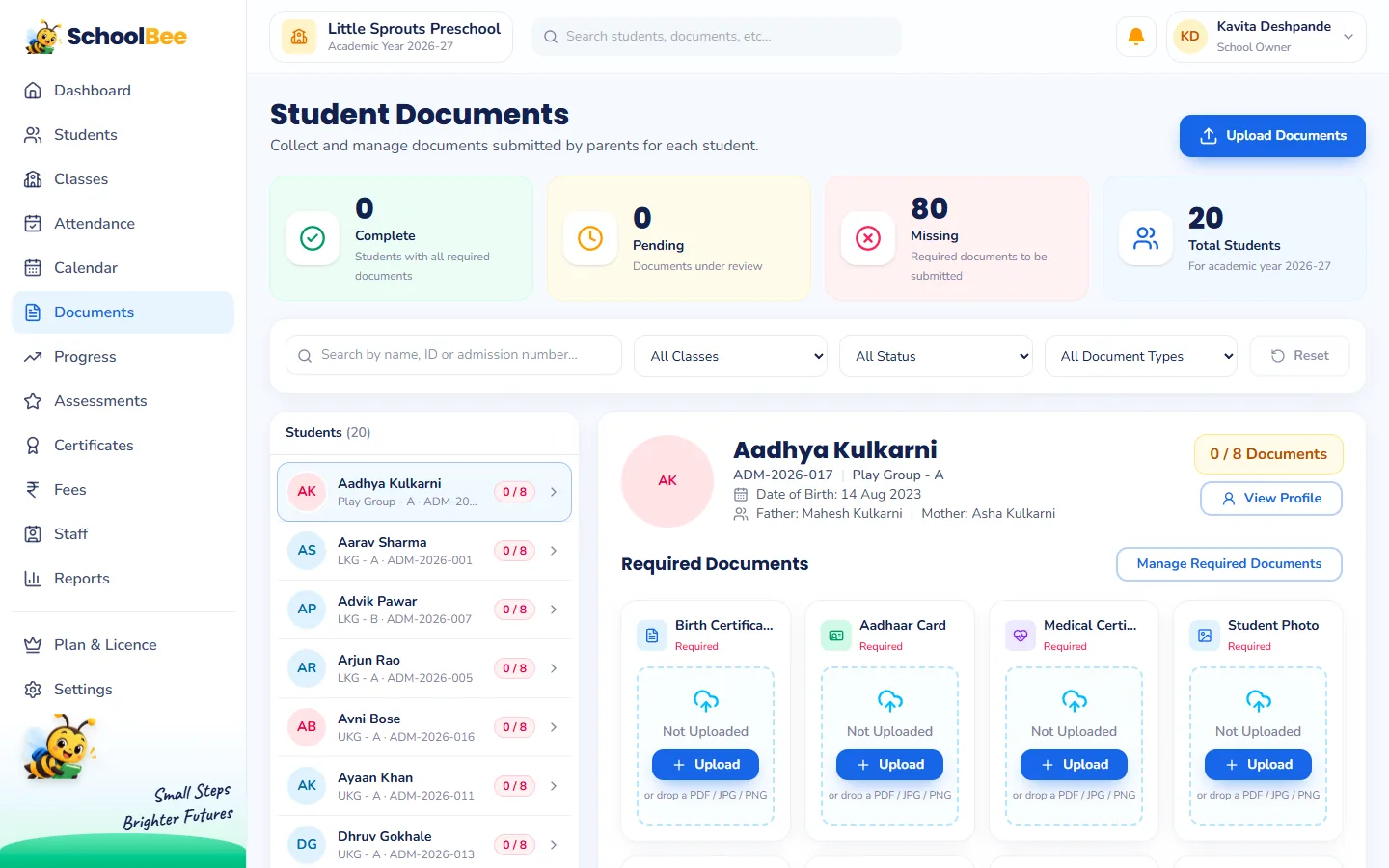
A document checklist for every child
SchoolBee starts with the documents preschools usually collect, which you can change in School Settings:
| Document | Required by default |
|---|---|
| Birth Certificate | Yes |
| Aadhaar Card | Yes |
| Medical Certificate | Yes |
| Student Photo | Yes |
| Address Proof | Optional |
| Parent ID | Optional |
| Vaccination Certificate | Optional |
| Previous School TC | Optional |
Add your own types, such as a custody document or an allergy plan, and choose which ones are required. Every child then gets a slot for each type.
Four clear statuses: Missing, Uploaded, Verified, Rejected
- Missing: no file yet.
- Uploaded: a file is in, waiting for someone to check it.
- Verified: checked and accepted.
- Rejected: not acceptable (for example blurred or the wrong document), so the parent needs to provide it again.
Upload PDFs, JPGs or PNGs up to 5 MB, taken from a scanner or simply a phone camera. Replace a file whenever a better copy arrives.
Who can upload and who can verify
Uploading and verifying are separate permissions. Class teachers or the office can upload documents as parents hand them in, while only the owner or a senior admin verifies or rejects them. This simple two-step check catches mistakes before they matter. Read more about staff permissions.
Find missing documents in seconds
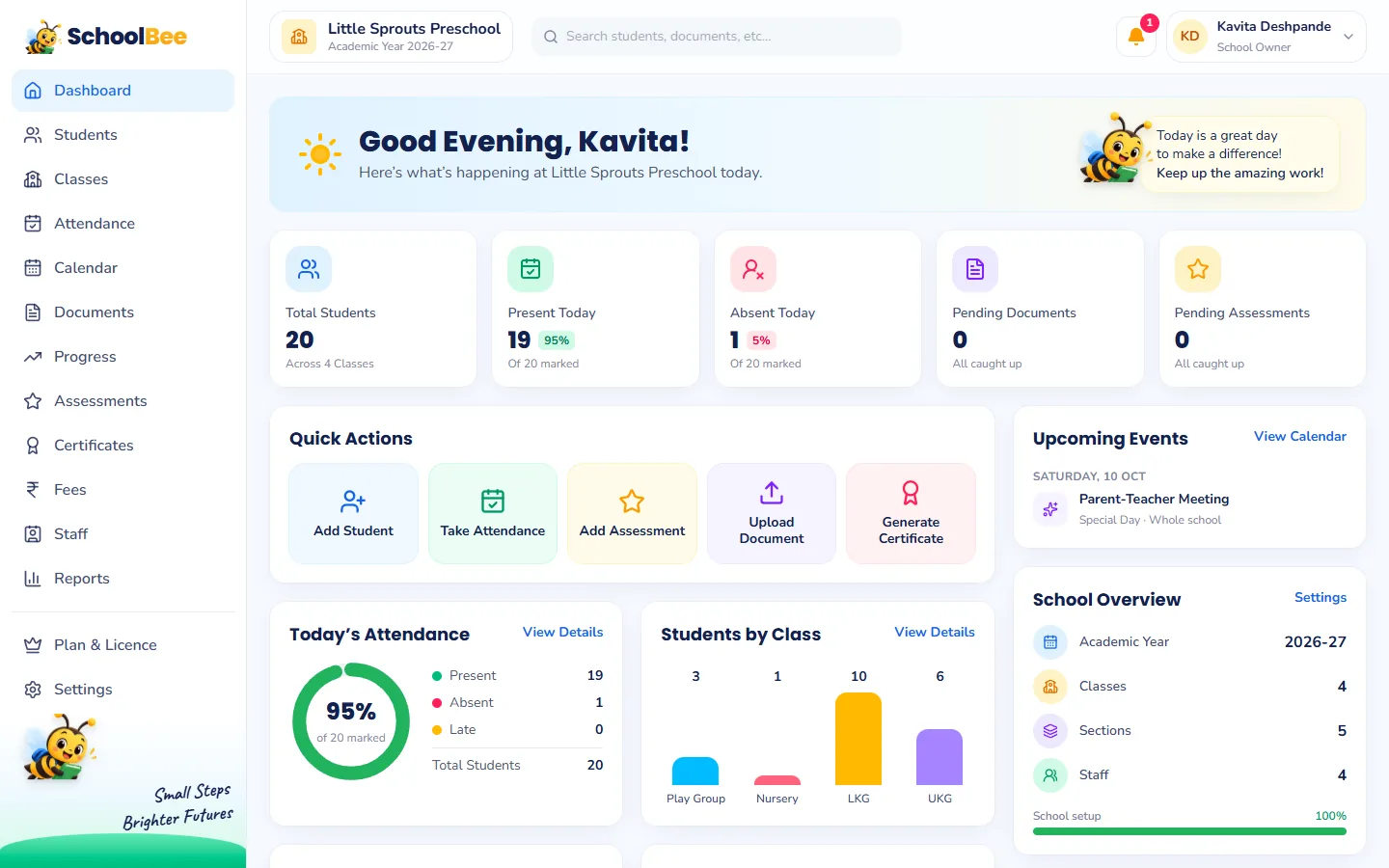
The dashboard shows how many documents are pending. On the Documents page, filter by class, status or document type to see exactly which children still need, say, a medical certificate. The Document compliance report lists who is missing what and what is waiting for verification, and exports to Excel so you can send reminders.
Private by design
Children’s documents are sensitive. In SchoolBee the files are private: they are never public links, and they can only be opened by signed-in staff with permission, through short-lived secure links. Data is kept on secure cloud infrastructure with regular backups.
Frequently asked questions
Which file types can I upload?
PDF, JPG and PNG files up to 5 MB each.
Can I change the list of required documents?
Yes. Add, rename or remove document types and mark which ones are required in School Settings.
Can parents upload documents themselves?
Not at the moment. School staff upload documents as parents hand them in.
Can I see which students are missing documents?
Yes. Filter the Documents page by status or type, or open the Document compliance report and export it to Excel.
Are staff documents handled too?
Yes. Staff have their own Documents tab for ID proof, PAN, police verification and more, plus a report of missing staff documents.