
"How is she doing in class?" is the question every preschool teacher hears at the gate. Parents of young children want reassurance and a sense of what is happening during the day. Long WhatsApp threads and one parent-teacher meeting a term do not quite do it.
The SchoolBee parent portal gives every family a private, simple place to follow their child’s progress, read report cards and see what is coming up at school.
In this guide
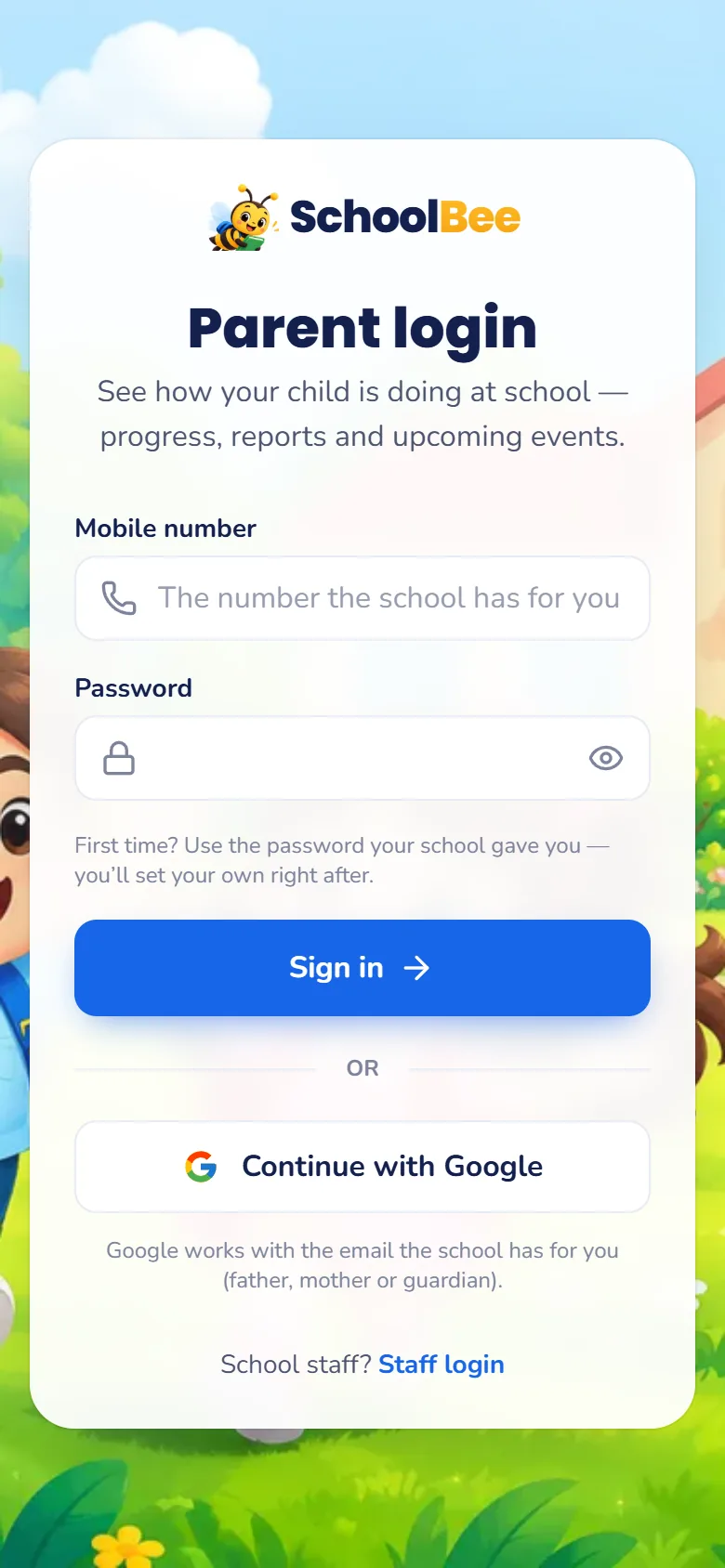
Logging in: just a mobile number
Parents sign in with the mobile number the school has on the child’s record (father, mother or guardian). The first time, they use the school’s default password and then choose their own. Parents with a Google account for the email on record can also use Continue with Google.
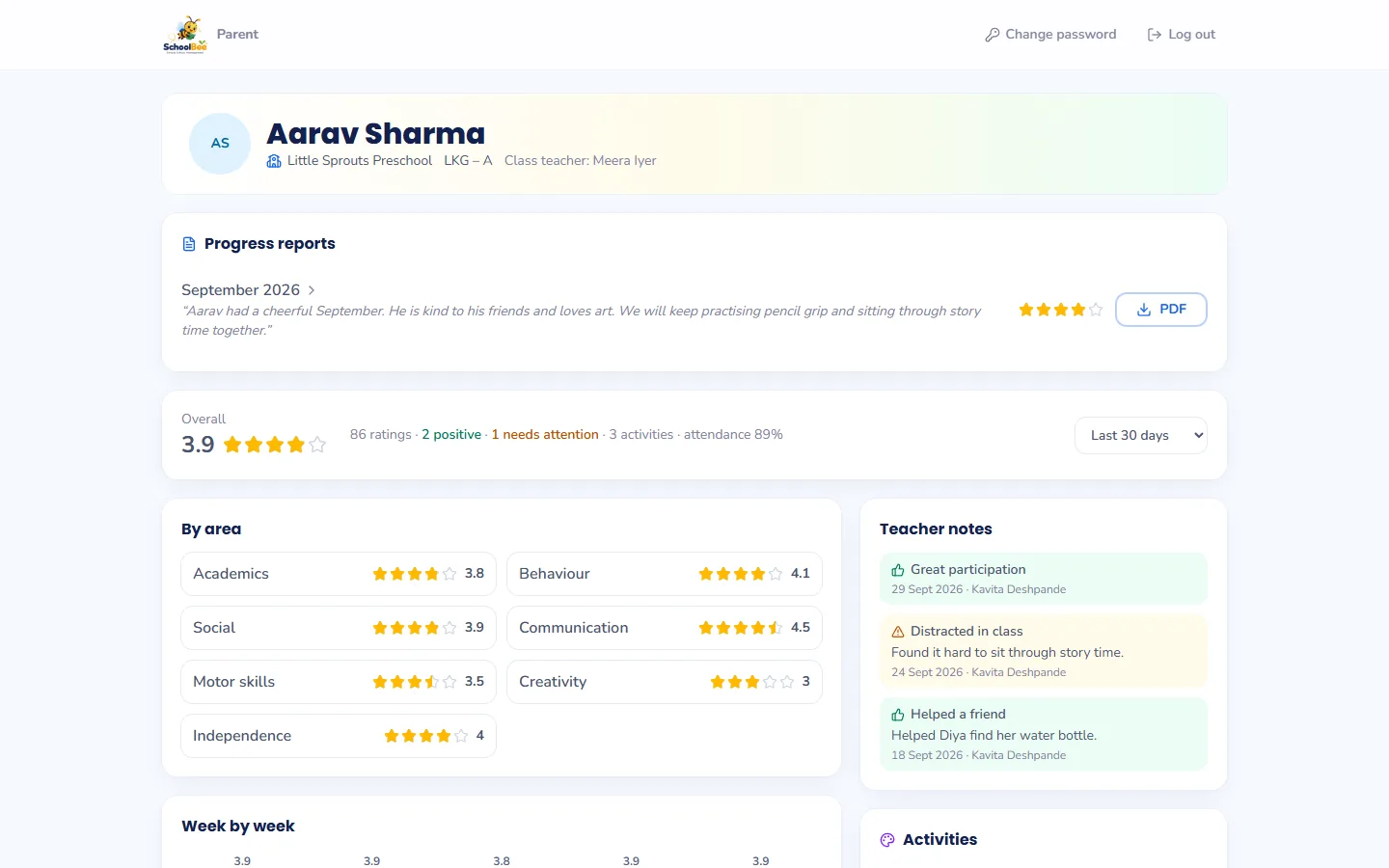
What parents see
- Their children only. Parents with two children at the school switch between them in one tap.
- Progress at a glance. Star ratings by area, positive notes and things to work on, and activity feedback, for the last 30 days or any range they choose.
- Published progress reports with the class teacher’s remarks, as a page and as a PDF report card.
- AI insights in family-friendly language: a summary, strengths, what is growing next and ideas to try at home.
- Coming up at school: holidays, trips and events for the child’s class over the next 30 days.
Report cards parents actually read
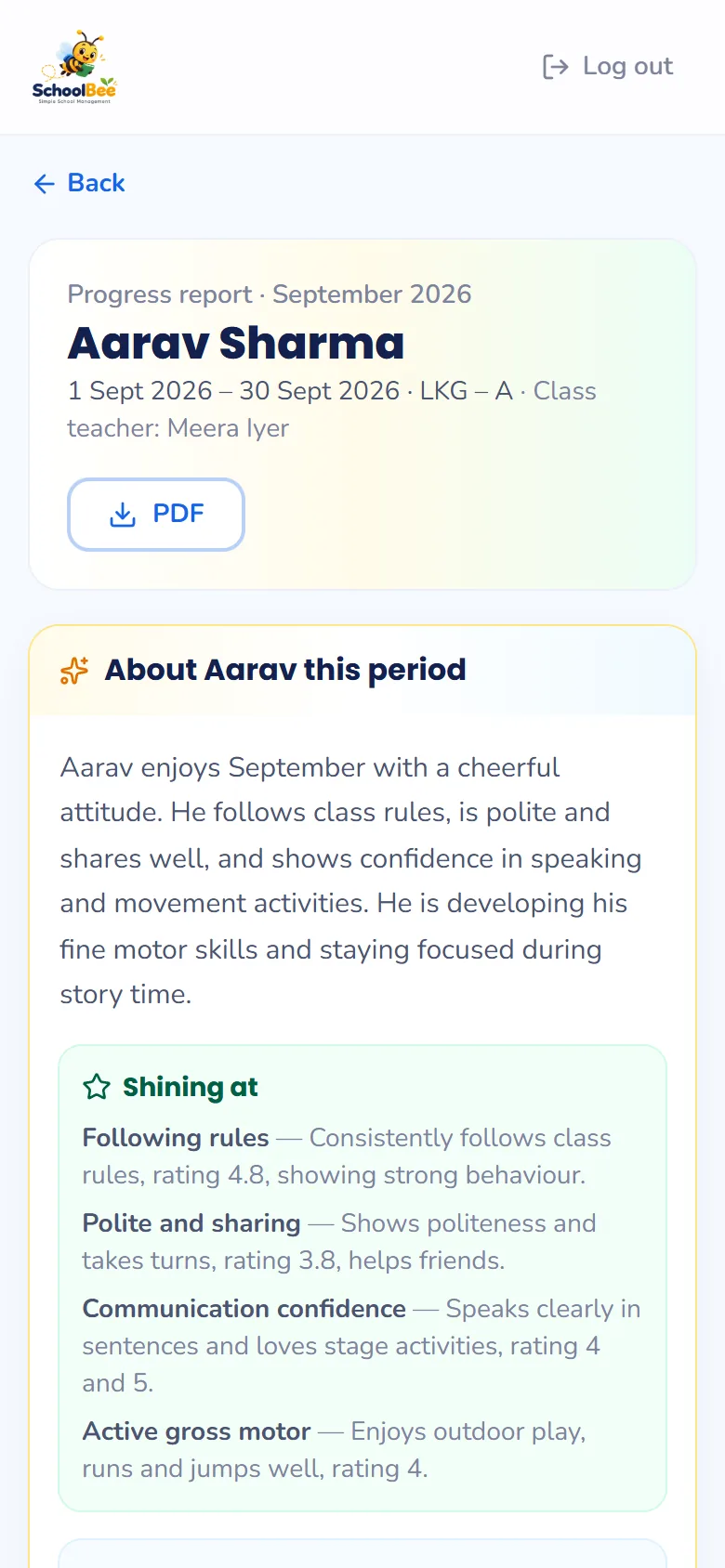
When a teacher publishes a progress report, it appears in the parent portal. Parents open it to see the period at a glance and download a professional PDF with the school logo, class teacher and principal signatures and the school stamp.
If the school uses AI progress reports, the parent view adds a warm, age-appropriate summary with a short plan: what parents can do at home and what the class teacher will do in class.
Private and safe for families
- A parent sees only the children whose record has their mobile number or email.
- Only published reports are visible. Drafts stay with the school.
- The school-only parts of the AI analysis (the feedback check and attention notes) are never shown to parents.
- Repeated wrong passwords are blocked for a while to keep accounts safe.
Tips for a successful launch with parents
- Check that every child’s record has the correct parent mobile numbers. The incomplete profiles report helps.
- Set your default parent password in Settings.
- Publish the first monthly progress report for one class.
- Share the parent login link and default password with that class’s parents.
- Repeat for the other classes once the first one is going well.
Frequently asked questions
Do parents need to install an app?
No. The parent portal opens in any phone or computer browser at the SchoolBee website.
What is the parent’s username?
Their mobile number as recorded on the child’s profile (father, mother or guardian). Google sign-in also works with the email on record.
A parent forgot the password. What now?
The school owner resets it to the school’s default password in Settings → Parent Login. The parent then sets a new one at their next sign-in.
Can parents see other children?
No. Parents only see the children linked to their own mobile number or email.
Can parents pay fees in the portal?
Not at the moment. The parent portal is focused on progress, reports and school events.