
The paper attendance register is one of the oldest habits in any school. It works, but adding up monthly percentages by hand, finding which children have missed a week, or proving attendance for a parent request takes far too long.
SchoolBee keeps the simplicity of the register and adds everything the register cannot do: instant totals, history, lock rules and ready reports.
In this guide
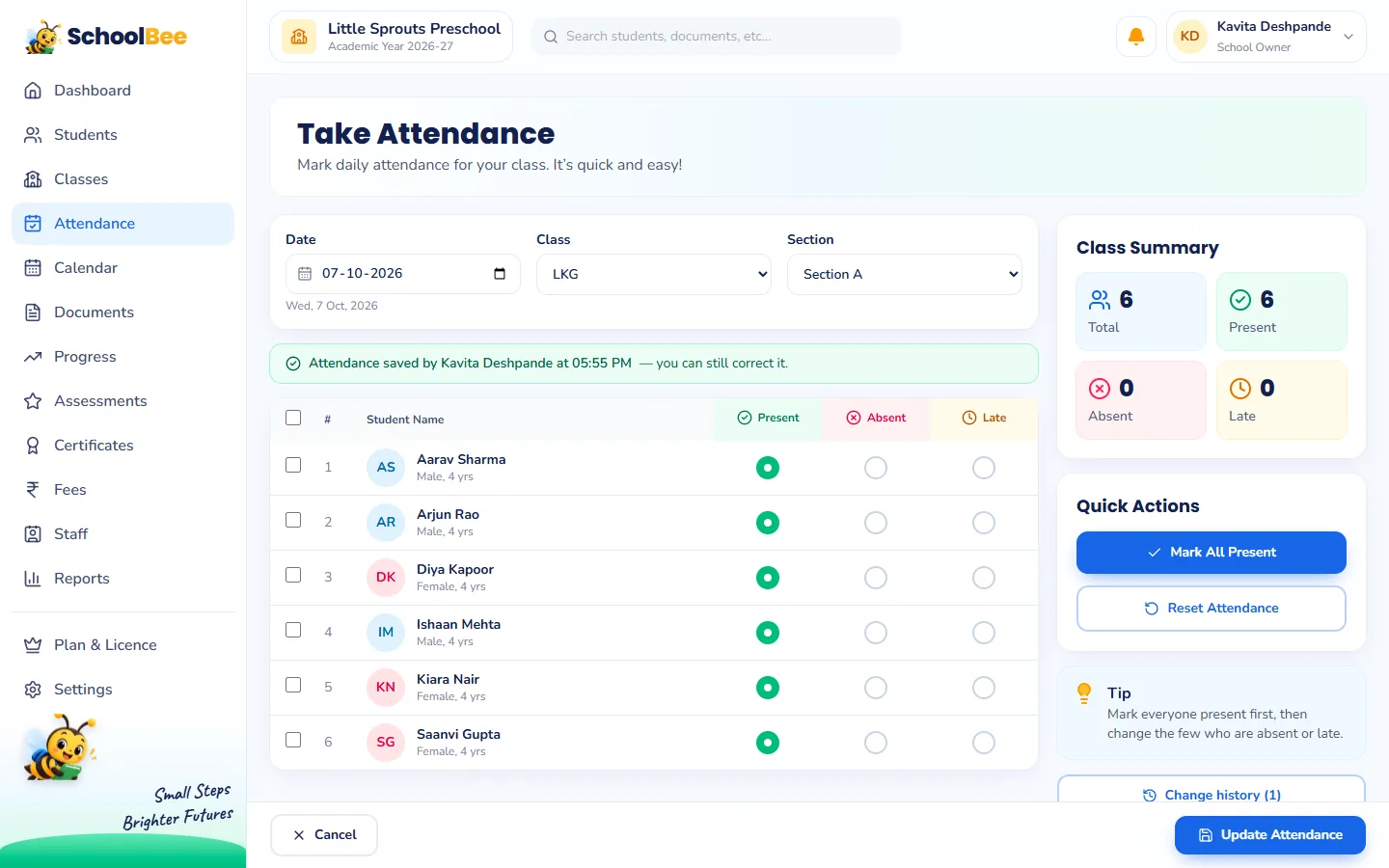
Taking attendance: under a minute per class
- Open Take Attendance and pick the date, class and section (class teachers see their own section straight away).
- Tap Mark All Present.
- Change the few children who are Absent or Late, adding a remark like "fever" if you like.
- Save as Draft if you are still waiting for a late arrival, or Final when the register is complete.
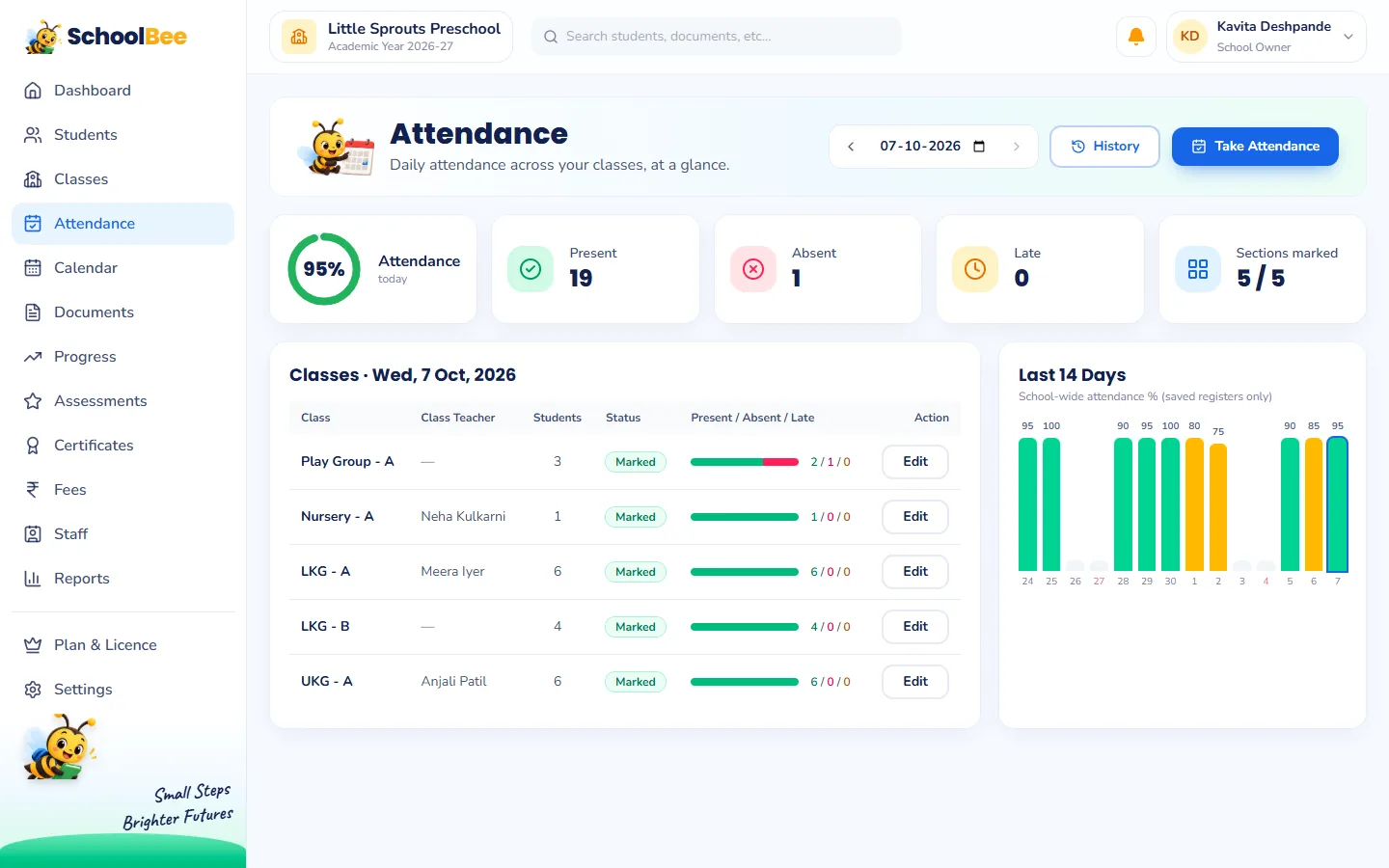
The attendance dashboard: who is in today?
The Attendance page shows today’s picture for the whole school: the attendance percentage, present, absent and late counts, how many sections have taken their register, and a chart of the last 14 days. Each class and section is listed with its class teacher and status, so the office can see at a glance which register has not been taken yet.
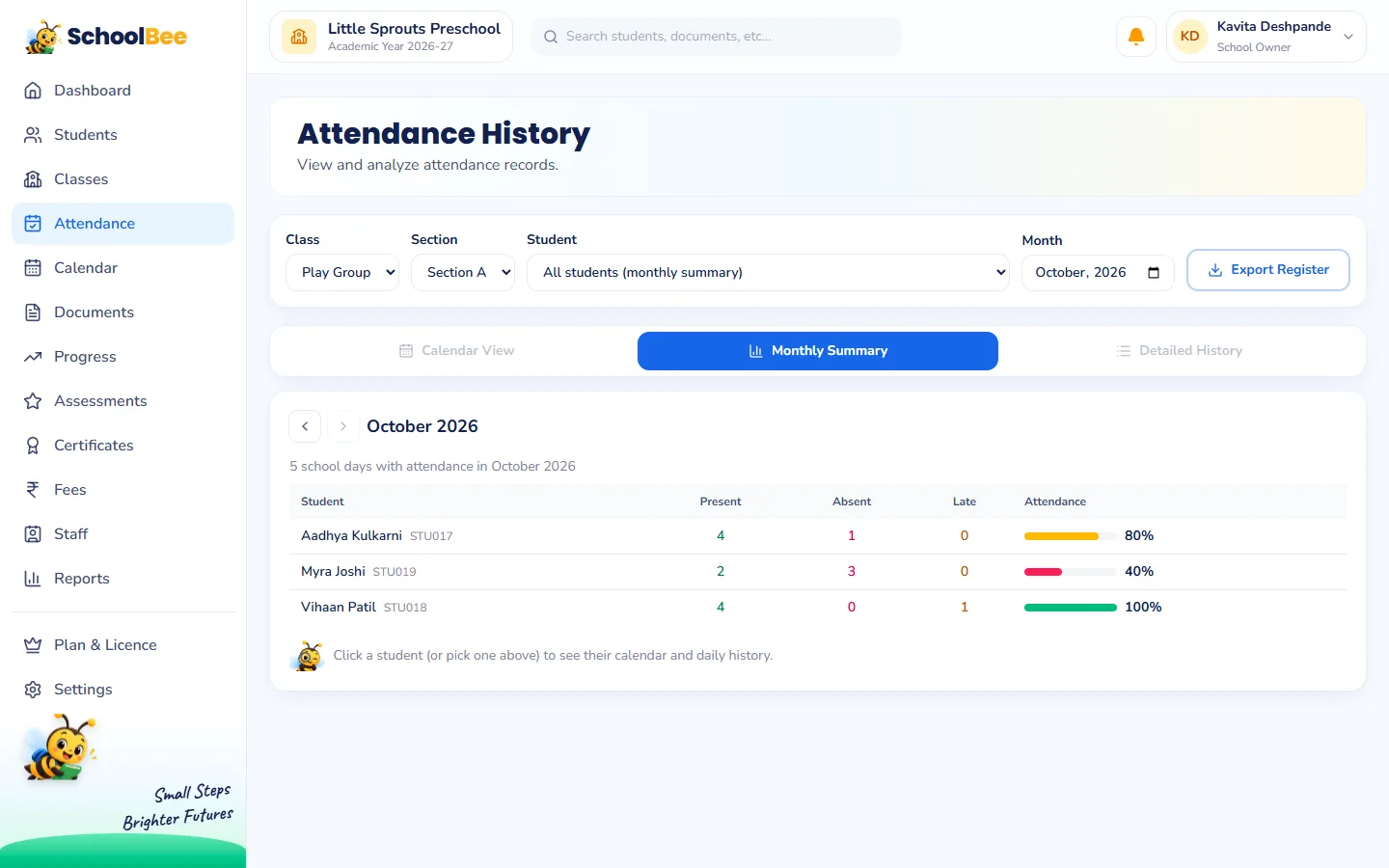
History, monthly registers and percentages
Attendance History shows any class for any month with each child’s present, absent and late days and their percentage. Open a child to see their calendar for the month. The monthly register (P / A / L for every day) can be exported to Excel or CSV in the format schools are used to.
SchoolBee counts a late arrival as attended: percentage = (present + late) ÷ days marked. Only Final registers count, so a half-done draft never skews the numbers.
Fair rules: who can mark, and when registers lock
- Class teachers take attendance for the sections they teach. The owner and admins can mark any section.
- Registers lock after a number of days (7 by default, set in School Settings). After that, only the owner can change them.
- Every change is logged: who changed it, when, and each child’s mark before and after.
- Holidays and weekly offs come from your school calendar and settings.
Attendance reports
| Report | Use it to |
|---|---|
| Daily attendance summary | See present, absent, late and not-marked for each class on a day |
| Monthly attendance register | Print or export the day-by-day register |
| Attendance % by student | Find children with low attendance, lowest first |
| Frequent absentees | Spot children absent several days, with their longest run |
| Registers not taken | Find school days where a class’s register was missed |
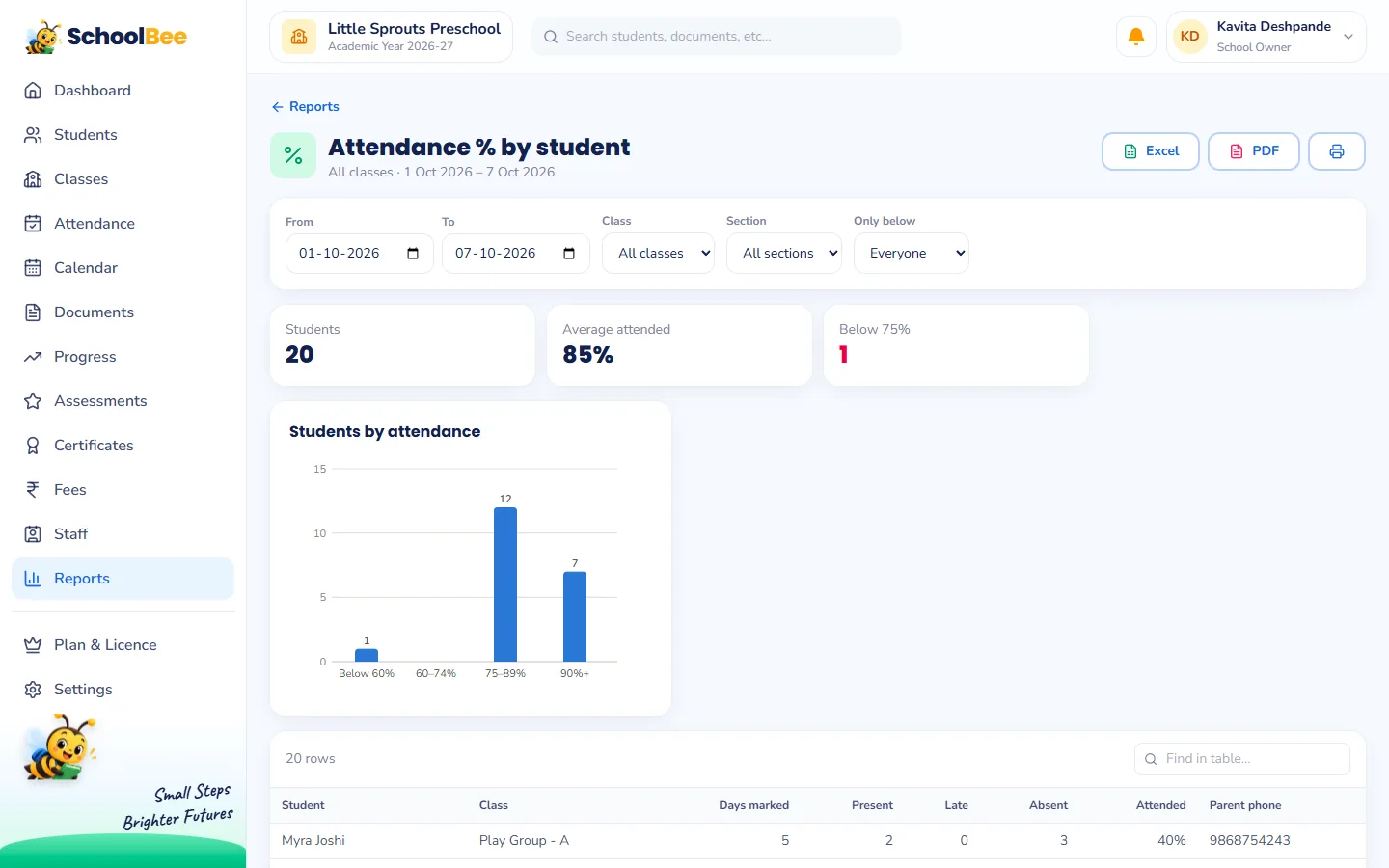
Attendance also feeds progress tracking: a child marked absent is automatically shown as absent for that day’s activities. See all ready-made reports.
Frequently asked questions
Can teachers take attendance on a mobile phone?
Yes. SchoolBee works in the phone’s browser, so teachers can take attendance anywhere in the classroom.
Can I mark a child as late?
Yes. Each child can be Present, Absent or Late, with an optional remark. Late counts as attended in percentages.
Can attendance be changed later?
Yes, within the lock period set in School Settings (7 days by default). After that only the owner can change it, and every change is logged.
Can I export the monthly register?
Yes. Export the monthly register for any class to Excel or CSV.
Do parents see attendance?
Parents see their child’s attendance summary for the period in the parent portal, along with progress and reports.