Ask any preschool teacher about report cards and you will hear the same thing: writing thoughtful comments for 25 children takes evenings, and they still end up sounding alike. Parents, meanwhile, want more than "Good" and "Very Good". They want to know what their child enjoys, what is still developing and how they can help at home.
SchoolBee splits this into two parts. Teachers record quick, structured observations every day. When a report is opened, AI turns those observations into a gentle, age-aware summary with a clear plan of who does what. Here is how it works.
In this guide
Step 1: Teachers record observations in a few taps
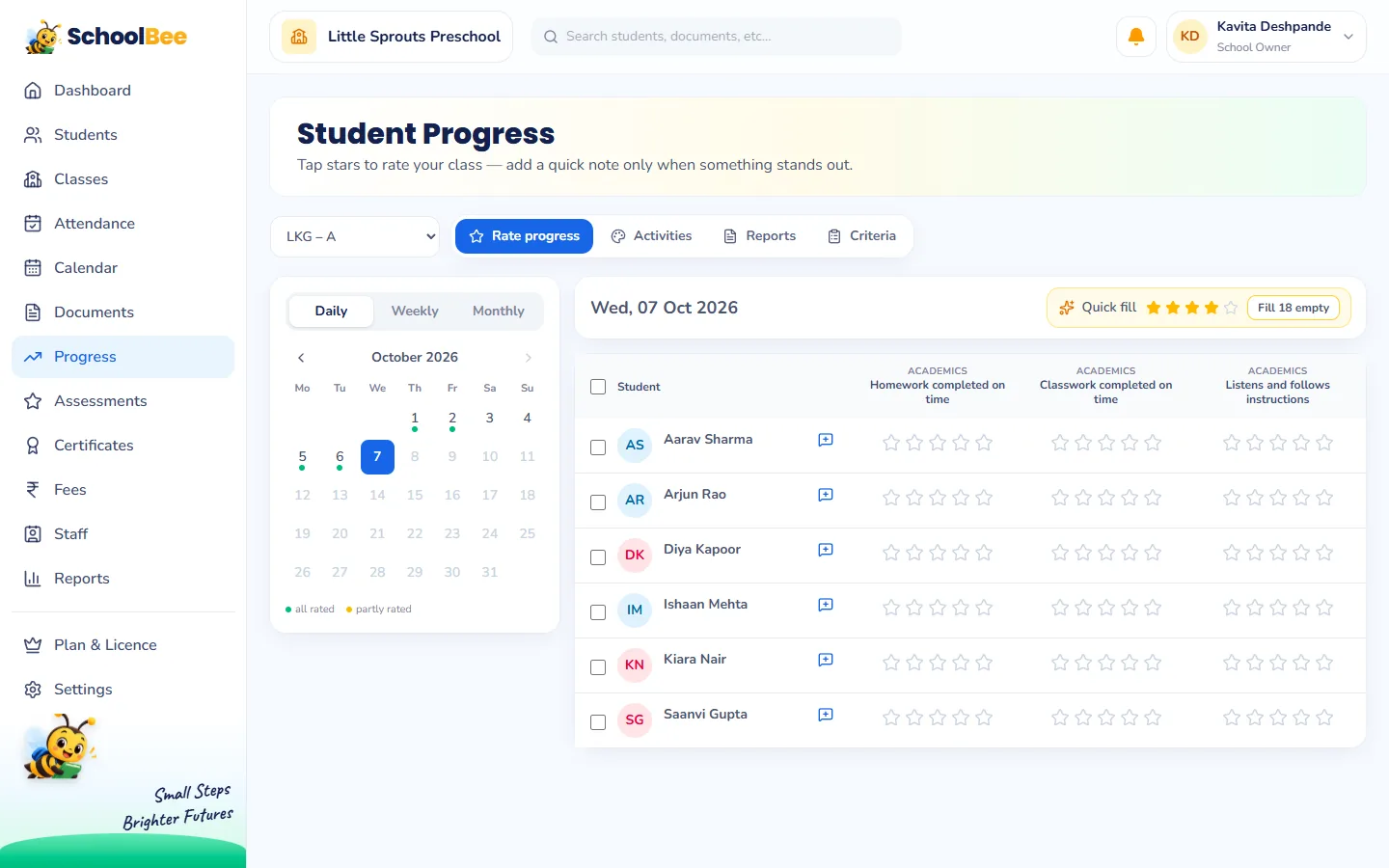
Progress is tracked against simple criteria grouped into areas like Academics, Behaviour, Social, Communication, Motor skills, Creativity and Independence. SchoolBee starts every school with a sensible set, such as "Listens and follows instructions", "Shares and takes turns" and "Fine motor (pencil grip, colouring within lines)", which the owner can edit. Each criterion is rated daily, weekly or monthly, so teachers are not asked to rate everything every day.
On the Progress page the teacher picks the class and taps 1 to 5 stars for each child. Adding a note is optional and takes one tap with ready tags like "Helped a friend" or "Tried something new". Activities like leaf painting or a rhyme recital get their own quick feedback, with "absent" filled in automatically from attendance.
Step 2: Reports for a week, a month or any period
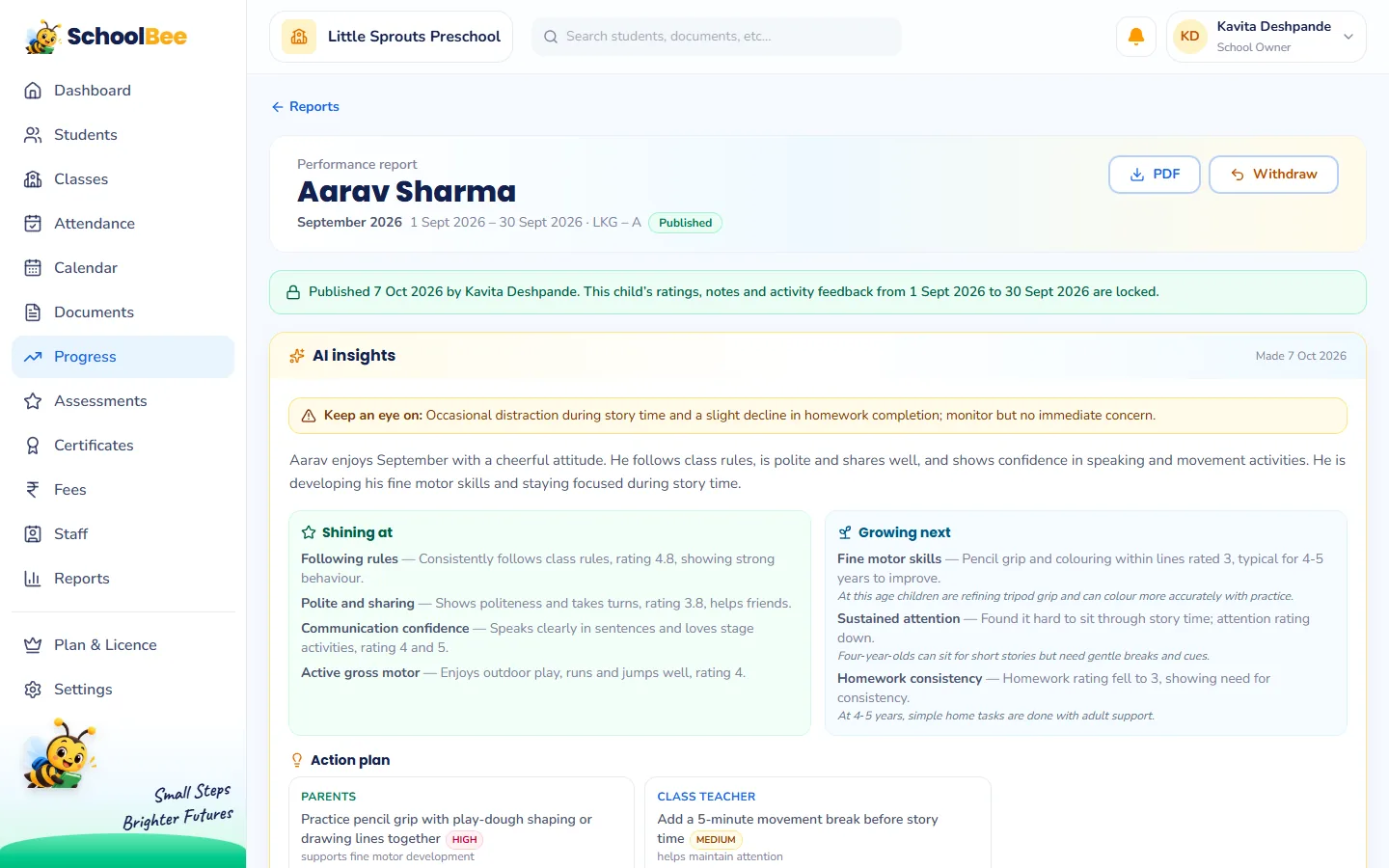
From the Reports tab, the teacher creates performance reports for a class or a single child for a week, a month or a custom range. Each report gathers the period’s averages by area and skill, trends ("improving", "steady", "needs support"), teacher notes, activities and attendance. The teacher can add personal remarks.
Publishing a report makes it final: that child’s ratings and notes for the period are locked so the report always matches the data. Only the school owner can withdraw a published report, with a reason, if something must be corrected.
Step 3: AI insights, only when someone opens the report
When the teacher opens a report, or a parent opens a published one, SchoolBee sends that one child’s data to the AI and saves the result. It is not run in bulk for the whole school, and it is not re-run every time the page opens, so it stays fast and economical.
What the AI receives is deliberately limited: the child’s first name, age in years and months, gender and class, plus the period’s ratings, trends, notes, activities, attendance and the teacher’s remarks. No surname, no phone number, no address.
Why the child’s age matters so much
A three-and-a-half-year-old who cannot yet hold a pencil properly is completely normal. The same note about a seven-year-old means something else. SchoolBee’s AI is instructed to judge everything against what is typical for that exact age, to describe difficulties as "is learning to" rather than labels, and to suggest playful, short activities instead of drilling or extra tuition.
Every "growing next" point includes an age note, for example "Very typical at 4 to 5 years", so parents read it as a normal step, not a problem.
An action plan with clear owners
The analysis always comes back in the same structure, so reports look consistent across the school:
| Section | What it contains | Who sees it |
|---|---|---|
| Summary | 2 to 4 warm sentences about the child’s period | Teacher, owner, parents |
| Strengths | What the data shows the child is shining at | Teacher, owner, parents |
| Growing next | What to develop next, with what is typical at this age | Teacher, owner, parents |
| Action plan | Small steps, each owned by the parent, class teacher or school owner | Parents see parent and class teacher steps |
| Ideas for home | Playful everyday activities | Teacher, owner, parents |
| Feedback check | Gaps or harsh wording in the teacher’s own feedback | School only |
| Attention note | "Keep an eye on" or "Talk with the family" | School only |
The feedback check is a quiet helper for the school. If a remark says a four-year-old is "weak in speaking", the AI flags the wording and suggests a kinder phrase. If every skill got the same five stars, it gently points out that the ratings may not reflect individual observation.
What parents see
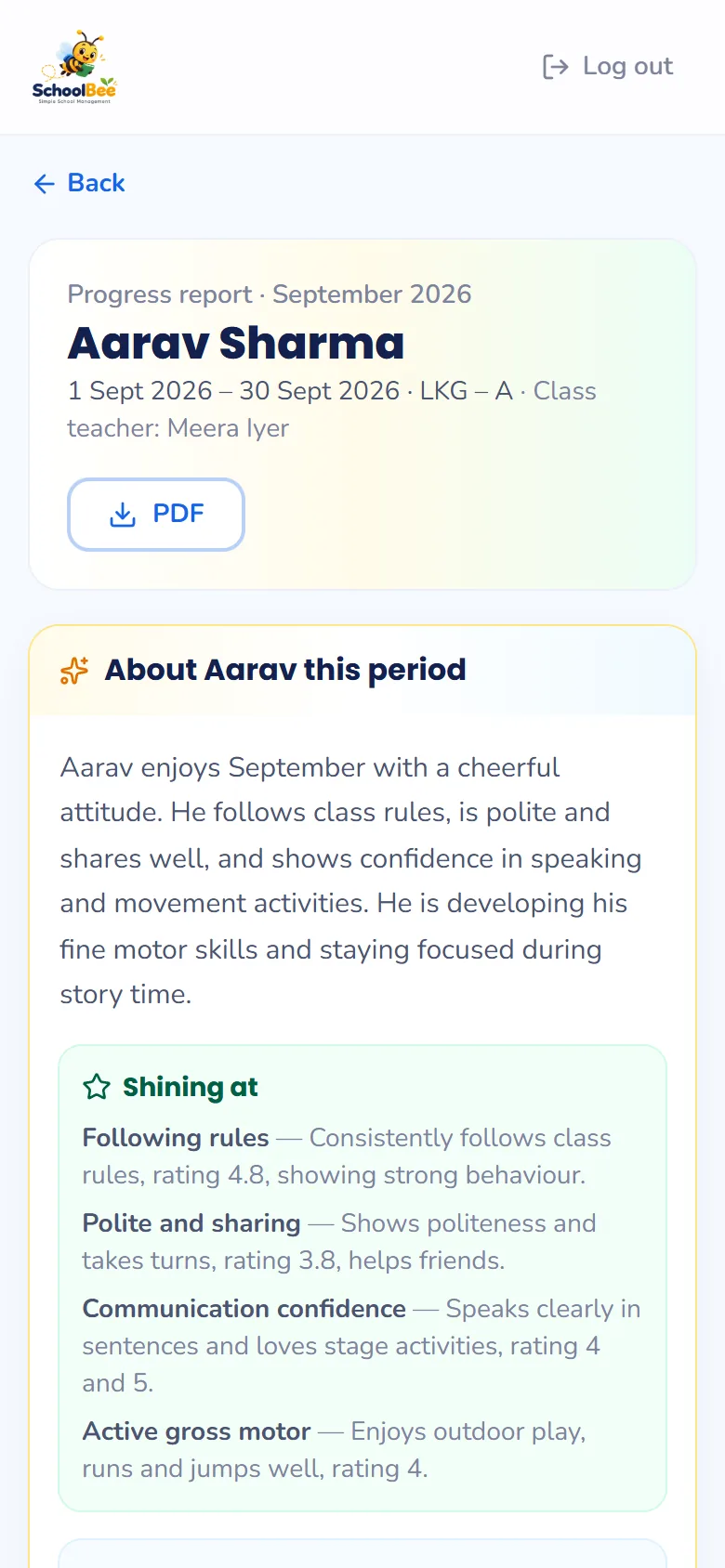
Parents sign in to the parent portal with their mobile number, open a published report and see a family-friendly view: the summary, strengths, growing next, the steps for home and in class, ideas to try at home and a personal message. They can also download the report card PDF with the school logo, signatures and stamp.
Read more in a parent portal that builds trust.
Frequently asked questions
Does the AI replace the teacher’s judgement?
No. Teachers record the observations and remarks; the AI only summarises them and suggests next steps. The teacher can refresh the analysis after editing remarks, and the school decides what to publish.
Is my students’ data safe?
Only the child’s first name, age, gender, class and the report’s observations are sent for analysis. No surname, contact details or address are shared.
Does the AI run for every student automatically?
No. It runs only when a teacher or parent opens a report, once per report, and the result is saved and reused.
Can parents see the feedback check?
No. The feedback check, the attention note and school-owner actions are visible only to the school.
Which plan includes AI insights?
AI insights are part of the Premium plan and are included in the free trial.